As the year comes to a close, it’s important to take time to review key financial, tax, and system tasks in Acumatica. Year-end preparation helps ensure accurate reporting, reduces risk, and sets your team up for a smooth transition into the new fiscal year.
This year’s big change: 1099s for tax year 2026 file through IRIS, not FIRE, and some of the setup needs to happen before January.
To make the process easier, we’ve outlined a practical Acumatica Year-End Checklist based on the most common tasks organizations complete before January 1.
Generate and Activate New Financial Periods
- Navigate to the Master Financial Calendar screen (GL201000).
- Verify if the new year is already available in the Financial Year dropdown. If not, click Generate Calendar. In the popup box, select the year you need to generate and click OK. Periods for the year will be generated and will be inactive by default.
- To activate periods, click the three dots > Open Periods.
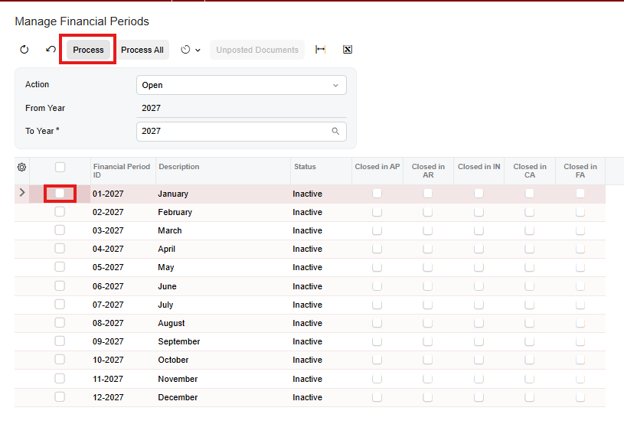
- On the Manage Financial Periods screen (GL503000), select specific period(s) or all periods for the year to open and click Process.
Account Reconciliations with Subledgers
Make sure that all of your General Ledger accounts are reconciled to the subledgers (i.e. A/R, A/P, Inventory, Clearing Accounts and Bank Reconciliations).
U.S. Form 1099
The Move to IRIS
The IRS is retiring FIRE. Starting with tax year 2026 (filed in early 2027), 1099-MISC and 1099-NEC e-files go through the Information Returns Intake System (IRIS), and the Create E-File (AP507500) form now generates IRIS CSV files instead of the old FIRE .txt file.
Which Acumatica Versions Support IRIS
Acumatica 2026 R2 generates IRIS CSV files today. Acumatica has confirmed that all supported versions (2025 R2, 2026 R1, and 2026 R2) will receive a year-end 1099 update with IRIS support.
If you’re not sure which build you’re on or whether you need the update, log a ticket with acumatica.help@i-techsupport.com.
Do This Now, Before January
- Apply for an IRIS Transmitter Control Code (TCC). You need an IRIS TCC to file through the IRIS Taxpayer Portal. It’s a 5-digit code that can only be used for IRIS. Apply and set up your portal account on the IRS IRIS page. The TCC is tied to your portal login, so it’s no longer entered in Acumatica.
- Set the Recipient Type on every 1099 vendor. On the Financial tab of the Vendors (AP303000) form, select Business or Individual. Acumatica can’t detect this automatically, and the file won’t be valid without it.
- Update your company 1099 settings. On the Companies (CS101500) form, confirm the 1099-MISC Reporting Entity box, company name, address, phone, and tax ID on the Company Details tab, and enter the reporting contact’s name, phone number, and phone number type on the 1099 Settings tab. If you file by branch, enter the contact on Branches (CS102000) instead.
Generating and Filing Your 1099s
Once your 1099 vendor amounts are verified, generate your files on the Create E-File (AP507500) form, choosing Transmitter Only or All 1099 Payers in the Prepare For box. Acumatica splits the output into CSV files of up to 250 records each, zipped together if there’s more than one.
Then, in the IRIS Taxpayer Portal:
- Upload the CSV files.
- Review them for validation errors.
- Submit the files.
Important: The IRIS Taxpayer Portal has no test mode. Every file you upload is treated as a real, official filing. If you find an error after submitting, you can submit a correction file with all amounts set to 0 to void the original, then generate and submit corrected files.
Information for Customers Who Use Pre-Printed Forms
For the 1099-NEC Form (AP653100), you may need to adjust the printing settings. The general recommendation is to use Custom Margins and set the Left margin to 0.5.
Close the 1099 Year
Once your 1099s are filed, close the 1099 year in Acumatica.
System Email/Exchange Email OAuth Application Expirations
The end of the year is a good time for your IT team to verify upcoming application expiration dates in the coming year. If there is an expiration date approaching, it’s better to get ahead of it by generating a new client secret and updating the secret value in Acumatica to avoid disruption in email service. Application secret expirations can be verified by logging into your Microsoft Azure/Identity admin site.
System Configuration Changes
If you are considering making any system configuration changes (i.e. GL Account Classes, Customer Classes, Vendor Classes, Item Classes, etc.), it may be a good time to do this at the beginning of the new year.
Sales Tax Changes
Verify if there are any sales tax changes that will be going into effect on January 1st in the areas where you are doing business.
Customer and Vendor Price Changes
Vendor or customer price changes often occur on the 1st day of the new year. You may want to consider updating these prices in your system to ensure accuracy of your purchase orders and sales orders.
Financial Reporting Changes
Some financial reports may have been built using specific reporting periods. If so, they may need to be modified for the new fiscal year.
Retained Earnings Roll Over
Occasionally, we’ve found the retained earnings do not roll properly due to backdated transactions. If this is the case, you can correct it by running the Recalculate Account Balances process.
Review 2026 Payroll Updates
As part of year-end preparation, review this year’s payroll updates. Several affect year-end reporting:
- W-2 Box 14 is now two boxes. Box 14a covers other information and Box 14b reports Treasury Tip Occupational Codes. Existing Box 14 setup carries over to 14a automatically. If you report tips, you can assign up to two occupation codes per employee on the Tax Settings tab of Employee Pay Settings.
- Rothified catch-up contributions. Acumatica Payroll now supports SECURE 2.0 Roth catch-up rules for 401(k), 403(b), and 457 plans, with new Rothified Catch-Up and Rothified Catch-Up Method settings.
- Action Required items. Some updates require you to review year-to-date wages or tax setup, such as Pennsylvania employee SUI. Check the updates for every state where you have employees before your final payroll of the year.
For the full list of federal, state, and local changes, refer to Acumatica’s 2026 Payroll Tax Updates.
Questions about Year-End Tasks You Need to Complete in Acumatica?
If you work with i-Tech as your Acumatica partner, log a support ticket if you have any questions about preparing for the new year, including IRIS setup and 1099 builds. If you’re not currently on Acumatica and want to learn more about how cloud ERP can help you manage your business, reach out here.